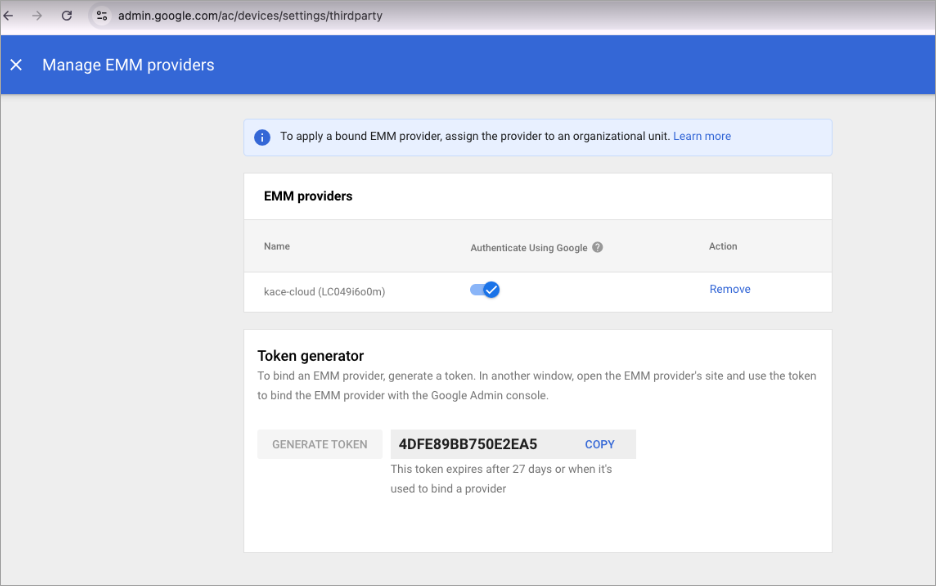
AMAPI: Enable Google Managed Authentication
The Android Management API has a feature that allows Managed Google accounts to be used for authentication when enrolling. To set this up, you need to use a Google Managed account with administrator privileges to integrate the Google Cloud console project with KACE Cloud.
Important points to remember before setting up Google Managed Authentication,
- A Google Managed account must be used to integrate KACE Cloud with the Google console project.
- If a test Gmail account was previously used, you must unenroll all the AMAPI-enrolled devices, and must create a new enterprise using a Google Managed Account.
- AMAPI devices are linked to a single enterprise at enrollment and cannot be reassigned.
The following are the steps to enable Google managed authentication (This assumes AMAPI integration with a Google console project using a Managed Google account has already been done).
- Step 1: Verify Google Workspace Integration
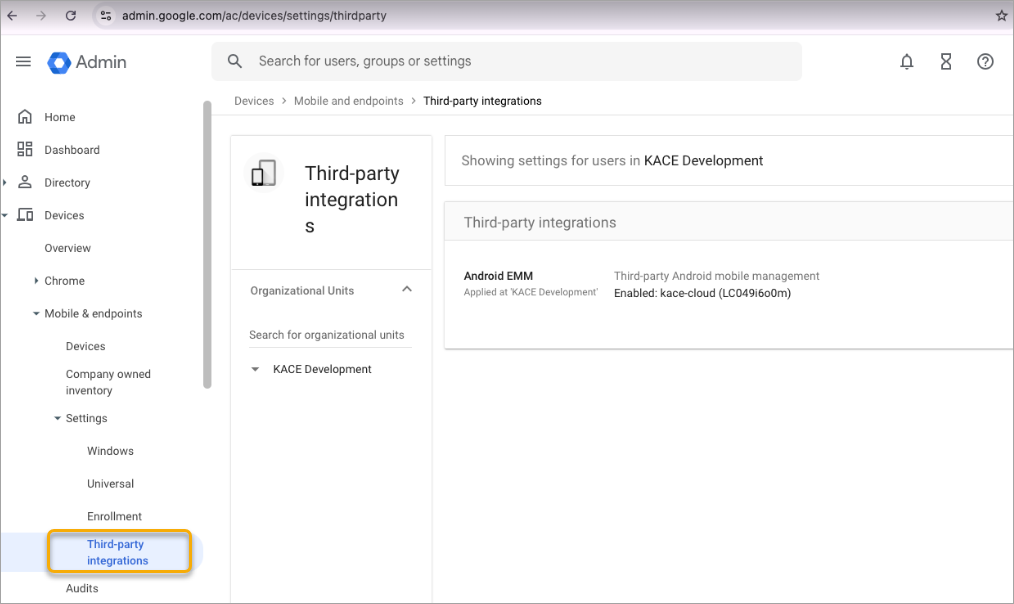
Before enabling Google Authentication, confirm that KACE Cloud is properly linked to a Google Managed Account. Follow the steps to verify,- Go to Google Admin Console (https://admin.google.com).
- Navigate to Devices > Mobile & Endpoints > Settings > Third-Party Integrations.
Ensure your enterprise appears in this section.
- Step 2: Verify the Enterprise ID in KACE Cloud
- Open KACE Cloud, and go to Android Management Settings.
- Ensure the Enterprise ID matches the enterprise selected in Android Management Settings.
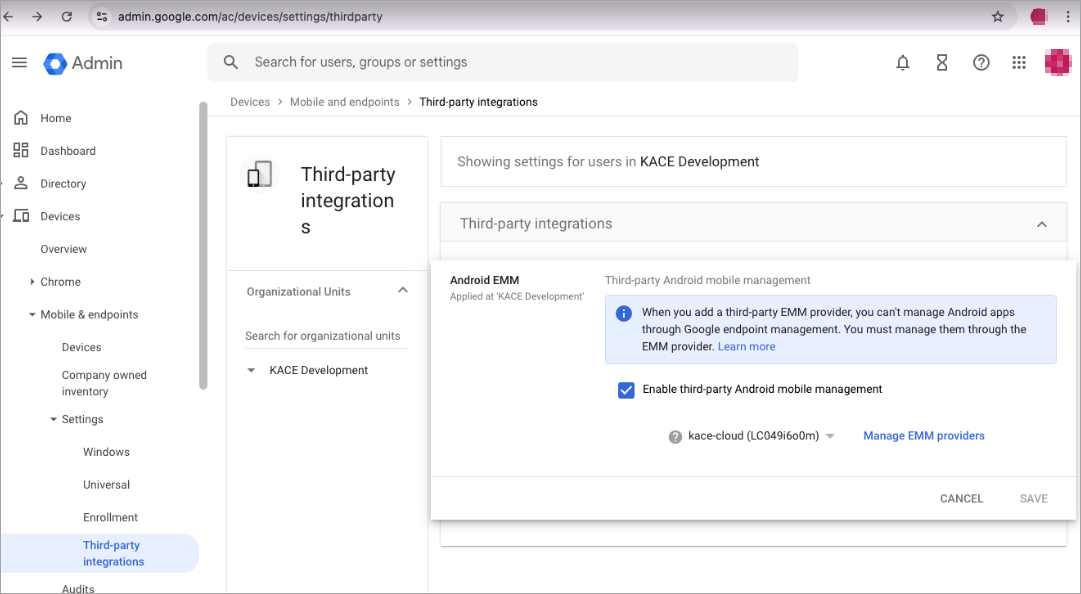
- Step 3 : Enable Google Managed Authentication in KACE Cloud
- Go to Android EMM Settings and edit it.
- Click Manage MDM Providers.
- Locate and enable Google Authentication.
Once enabled, Google Managed Account authentication will be available for work profile enrollments.